Project Catalog Report
Overview: Search for existing Product Codes by various filters and presentations. Option to download data. Hyperlink to transaction detail. Reports include; overstock, shortage, over estimate, status, discrepancy and historical details.
Topics:
Project Catalog Bin Location Report (tip: see cable management bin selection help screen. what do they use this for>?
Process:
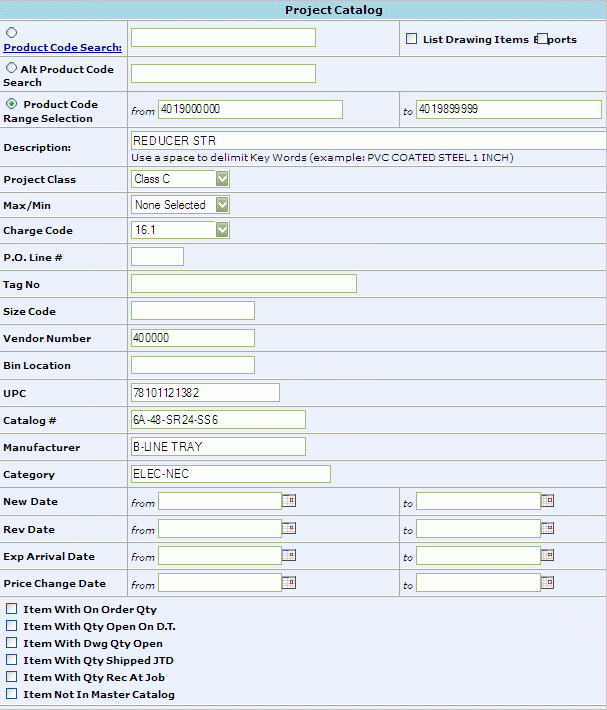
1) Project Catalog Report. From the CMMS Menu -> Reports -> Project Catalog Report.
To download the entire catalog, click the Product Code Range Section radio button and leave the from and to fields blank.
OR
Report may be run by entering specific report criteria. The more filters entered the narrower the results will be.
Project Catalog Filters:
Product Code Search: Allows users to search by only one product code
List Drawing Items: Checking this box will display all the drawings that contain the entered product code.
Exports: Selecting Exports will display all the export packages that contain this item.
Alternate Product Code Search: Customer product code.
Product Code Range Selection: Search by product code range (ex. 2110100075-2110100150)
Description: Product short description.
Project Class: Search by Class A, B, C, or D.
Max/Min: Yes/No
Charge Code: If a charge code has been entered into the project, the user can select which to search by.
PO Line #: Allows user to search by the customer's line number if it was imputed into the project.
Tag No: Identification marker
Size Code: 100W, 60W, 3/4, etc
Vendor Number: Unique number assigned to a material distributor.
Bin Location: Allows user to search by the physical location of the product within the warehouse.
UPC: Allows user to search by the Universal Product code.
Catalog #: Manufacturer part number
Manufacturer: Company that built/created the product.
Category: Light, Cabletray, etc
New Date: New item search for a specified time period
Rev Date: Catalog items where a revision occurred during the specified time period.
Exp Arrival Date: Date item is expected to arrive.
Price Change Date: Displays products that have had a price change for specified dates
Item With On Order Qty: Returns products with items on order
Item with Qty Open on DT: Returns items that currently have items open a delivery ticket.
Item with Dwg Qty Open: Displays products that are currently in an open status on a Drawing.
Item with Qty Shipped JTD: Displays only items that have shipped to date on the Job.
Item with Qty Rec at Job: Displays only items that have been received on the Job.
Item NOT In Master Catalog: Displays any items that are not in the Master Catalog (for consolidated jobs)
Item IN Master Catalog: Returns only Product Codes in Project Catalog that are in Master Catalog.
Report Type Filters:
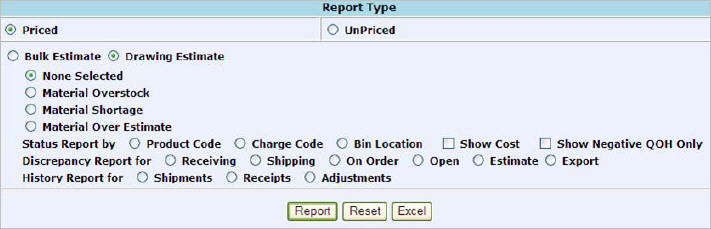
Priced: Will display current price
Unpriced: No pricing will be displayed.
Bulk
Estimate or Drawing Estimate
None Selected:
Material Overstock
Material Shortage:;
Material Over Estimate:
Status
Report (sorted) by: Choose
How the report is to be sorted: Product Code, Charge Code or Bin Location
What to be displayed: Show Cost or Show Negative QOH (quantity on hand) Only
Discrepancy Report for: Choose discrepancy to generate report on: Receiving, Shipping, On Order, Open, Estimate, or Export.
History Report for:
Choose type of history to report on: Shipments, Receipts,
or Adjustments.
Note: Only one
report type at a time may be selected
Generate
Report:
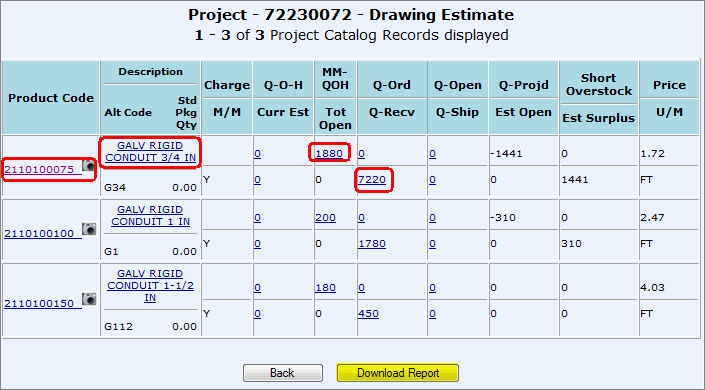
Report: Generate an interactive table of the Project Catalog Records meeting the criteria entered (See: Step A)
Reset: Reset the search criteria to the default and start over..
Excel: Download the data directly into an excel spreadsheet. (See: Step 5)
By
clicking Report
and interactive graph will display:
 Click
Here to Learn how to Read the Report
Click
Here to Learn how to Read the Report
Any hyperlinks (outlined in red) will give you more information about the content.
Click Download
Report to view a text file with added information. Click the here hyperlink to view the text
report:
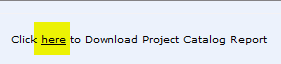

To save a the Text file on your computer, right click on the here hyperlink:
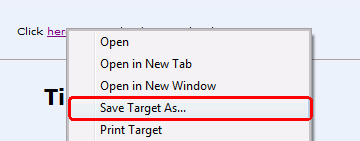
Identify
a save location.
*To import into Excel, open Excel and then open the text file into Excel.
By
clicking the Excel
button on the report screen, you will open some of the report data:
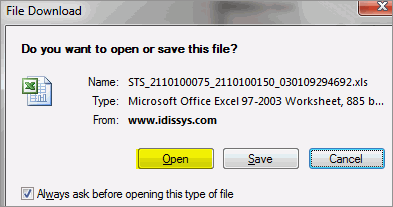
Click
Open or Save.
View
Excel spreadsheet.

2)
Project Catalog Discrepancy Report.
From the CMMS Menu > Reports > Project
Catalog Report.
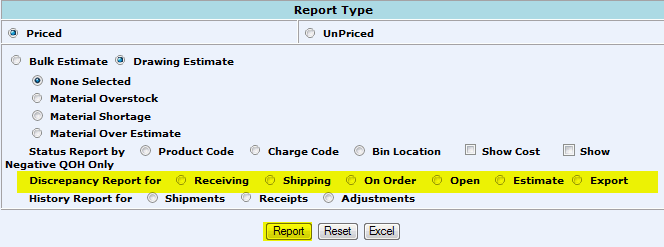
Enter desired search criteria and select a Discrepancy Report radio button (highlighted in yellow).
Click Report. (Excel button will generate the same report as clicking the Report button.)
Click on the hyperlink.

View
and/or save the Report:
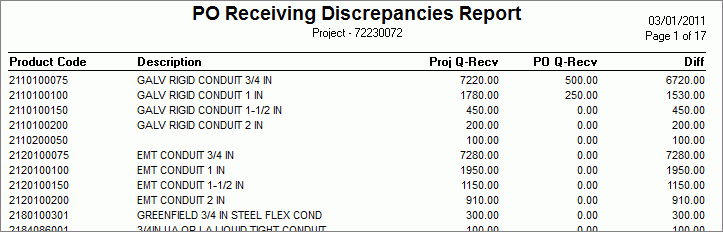
3)Project
Catalog Bin Location Report. From
the CMMS Menu > Reports >
Project Catalog Report.
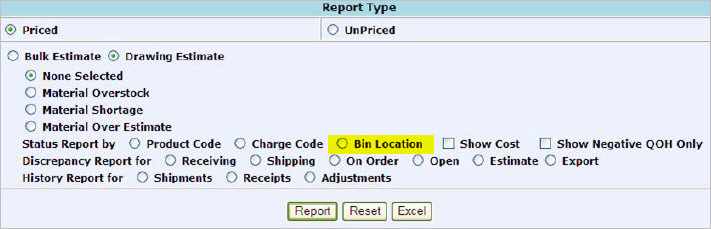
Enter desired search criteria and select a Bin Location radio button (highlighted in yellow).
Click Report
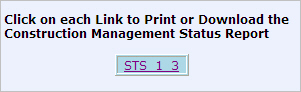
and then the hyperlink to open.
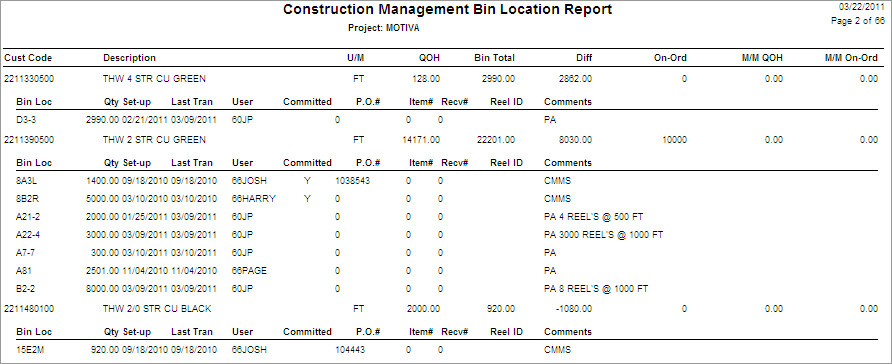
Click
Here to Learn how to Read the Report
