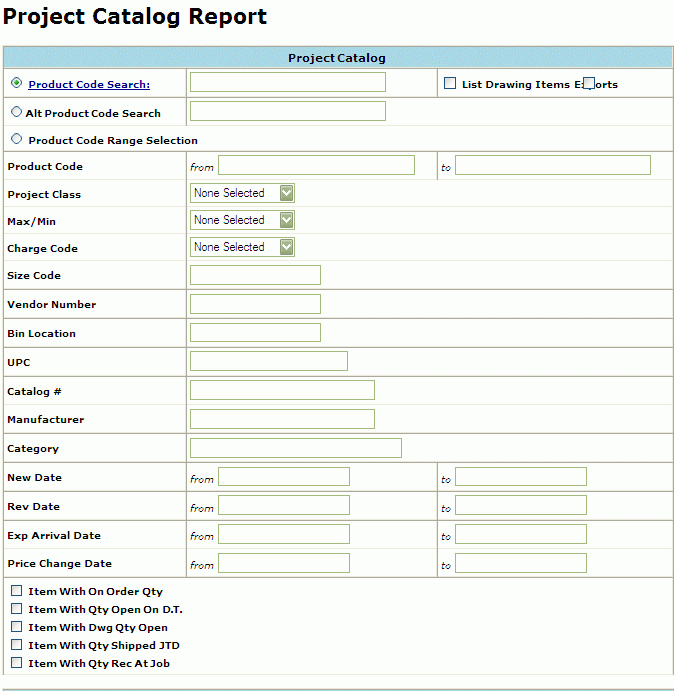
At the main menu, go to Reports -> Project Catalog . A Project Catalog Report Query screen displays. Enter your query parameters and click on Report.
The Project Catalog Report Parameters are broken into several subcategories.
A Report may be generated on a Single Product Code or a Range of Product Codes.
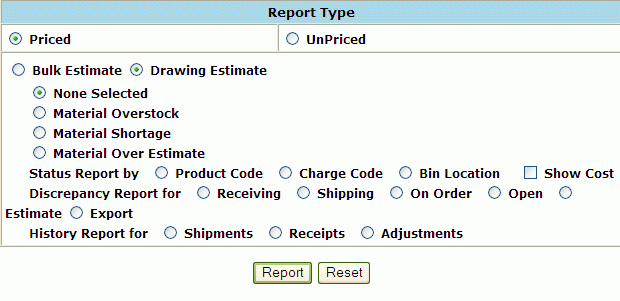
Once all report criteria is entered above select the Report Type desired. Select Priced or Un-priced Catalog.
The query returns the data in the Project Catalog Report.
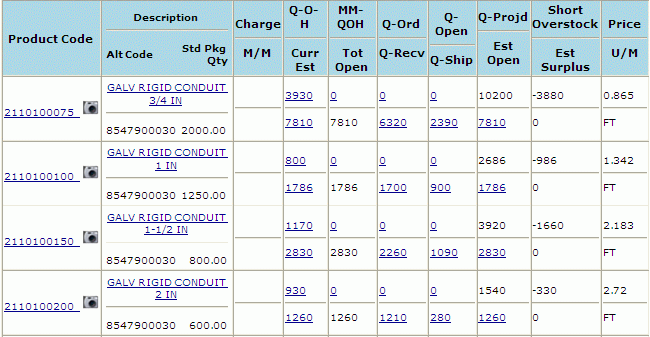
You can print the report by clicking the Printer Icon of your browser, or you can download the report by clicking on the Download Report at the bottom of the report.
"Tips for download" Page. Click on the blue "HERE" hyperlink displayed at the top of the screen to actually perform the download.

The download option will generate a tab delimited ASCII text file. This file will be displayed in text format for viewing. To request another report, use the BACK button on your browser to return to the Report Selection Screen.
This file format can be imported into any spreadsheet or database for further review. Save Target as a user-specified file. Right-Click on the blue "HERE" hyperlink displayed at the top of the screen. In the pop-up box displayed, highlight "Save Target As...." (A "Save As" Box will appear). Browse and select the file in which you want to save the Material Rele ase Report. Click on the Save Button.
"Download Complete" will appear on your screen. To import into Excel, open the application and select the text file.