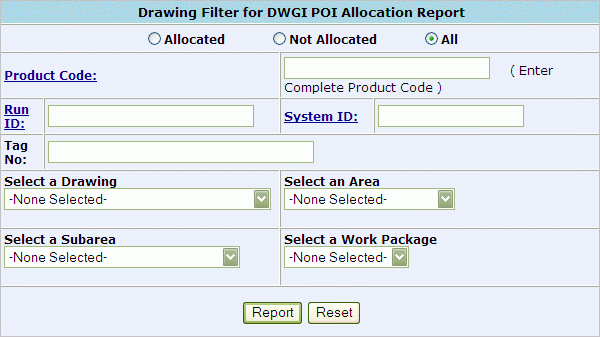
To run the Drawing Item Allocation Report go to the CMMS Drawing menu and select the Drawing Item Allocations link.
On the following screen select the type of report to generate:
Allocated - To report only items, matching the criteria entered, that HAVE BEEN allocated to a drawing
Not Allocated - To report only items, matching the criteria entered, that have NOT been allocated.
All - To report ALL items, matching criteria entered, regardless of allocation status.
Enter Report Criteria: Any combination of the following criteria may be used to generate report. At least one criteria must be entered.
Product Code
RUN ID or SYSTEM ID
Tag Number
Select Drawing Number from drop down menu
Select Area from drop down menu
Select SubArea from drop down menu
Select a Work Package from drop down menu
Click Report to Search for applicable Drawings.
Sample PO Item Allocation Report:
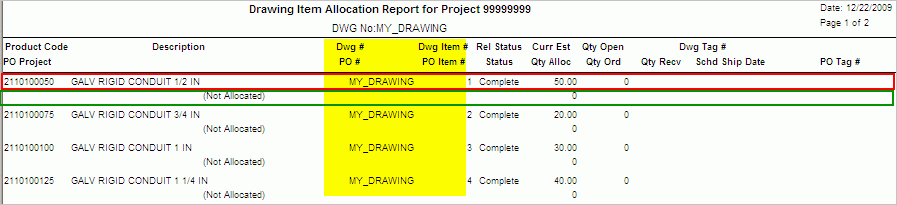
(fig 1)

(fig 2)
Report is sorted by Drawing Number then Product Code within each Drawing. The top line of information displayed is in reference to the Product Code within the Drawing listed (red box). The second line of information displayed is in reference to the Allocation of the item within the Drawing (green box). Looking at figure 1 note that product code 2110100050 is contained on MY_DRAWING but has not been allocated. Looking at figure 2 note that product code 2110300224 is contained on MY_DRAWING and that current 25 of a total quantity of 50 has been allocated to PO#810195.
The following information is displayed on the Drawing Item Allocation Report:
Store Product Code
Project Number from the Purchase Order (fig 1 does not have a PO number listed because items are not allocated)
Item description
Drawing Number
Non Allocated item will be annotated as such next to the product description (yellow box, fig 1)
Allocated items will display PO#, Drawing Item # and PO Item # (blue box, fig 2)
Release Status of item on Drawing Release Status of item on Drawing
Status of item on PO
Current Estimate of item on Drawing
Quantity Allocated on PO to Drawing
Quantity Open on Drawing
Quantity Ordered on PO
Quantity Received
Drawing Tag Number
Scheduled Ship Date
PO Tag Number
Click here to search for Item Allocations by Purchase Order Information.