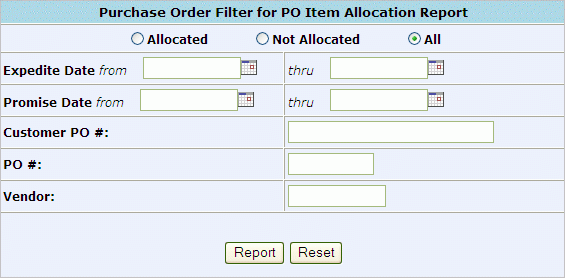
To run the Purchase Order Item Allocation Report go to the CMMS Purchasing menu and select the PO Item Allocation link.
On the following screen select the type of report to generate:
Allocated - To report only items, matching the criteria entered, that HAVE BEEN allocated to a drawing
Not Allocated - To report only items, matching the criteria entered, that have NOT been allocated.
All - To report ALL items, matching criteria entered, regardless of allocation status.
Enter Report Criteria: Any combination of the following criteria may be used to generate report. At least one criteria must be entered.
Expedite Date
Promise Date
Customer Purchase Order number
Purchase Order number
Vendor Number
Click Report to search for matching Purchase Orders.
Sample PO Item Allocation Report:
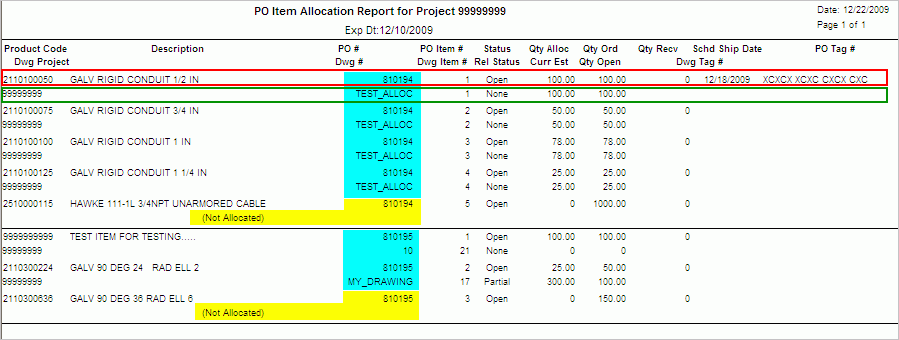
Report is sorted by Purchase Order Number and then Product Code within the Purchase Order. The top line of information displayed is in reference to the Purchase Order (red box). The second line of information displayed is in reference to the Drawing (green box).
The following information is displayed:
Store Product Code
Drawing Project Number
Item description
Non Allocated item will be annotated as such next to the product description. Note that a PO number is listed for item but no drawing number (yellow box)
Allocated items will display PO# item allocated to and Drawing # (blue box)
PO item number
Drawing item number - if allocated
Status of item on PO
Release Status of item on Drawing
Quantity Allocated from the PO
Current Estimate of item on Drawing
Quantity Ordered on Purchase Order
Quantity Open on Drawing
Quantity Received on PO
Scheduled Ship Date of item on Drawing
Drawing Tag Number
PO Tag Number
Quantity Open on Drawing
Click here to search for Item Allocations by Drawing Information.